Dashboard Reports
The Dashboard Reports menu allows you to easily open and regenerate saved reports. Learn more how to create a dashboard report in Report Generation and Save as Dashboard Tab.
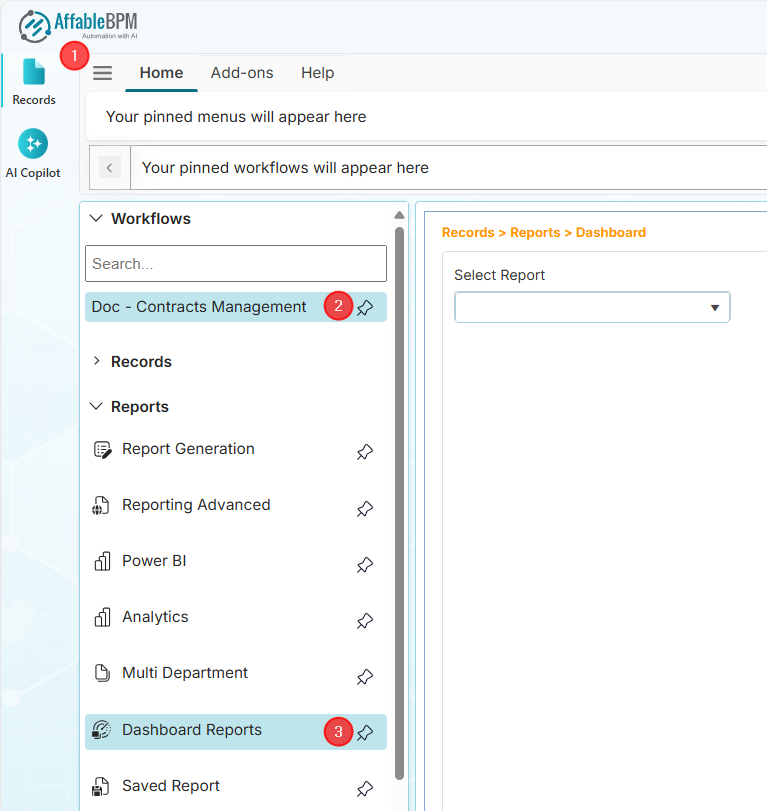
How to Open Dashboard Reports
-
You can open dashboard reports only if you are granted access by the Manager or Administrator. You will receive a notification if you don't have access.
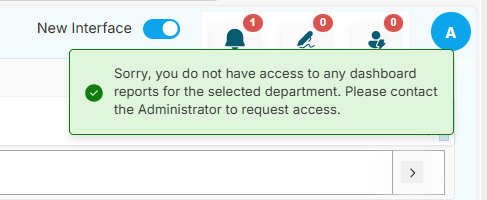
-
You will receive a notification if the workflow has no defined dashboard.
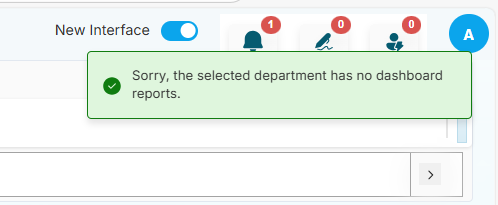
-
From the sidebar, click the Records menu.
-
Click the Workflows section.
-
Find and click your assigned workflow.
-
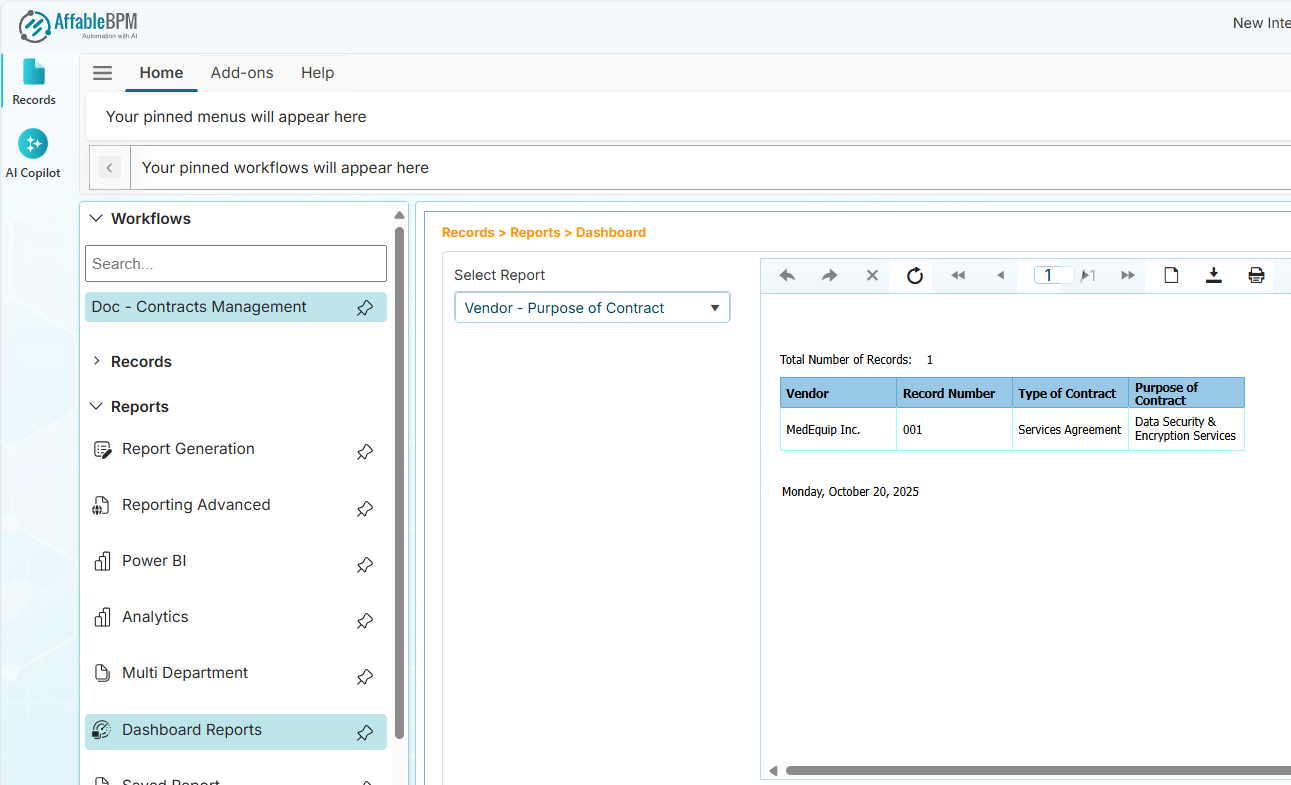
In the Reports section, click the Dashboard Reports menu.
-
In the Select Report dropdown, click the dashboard report.
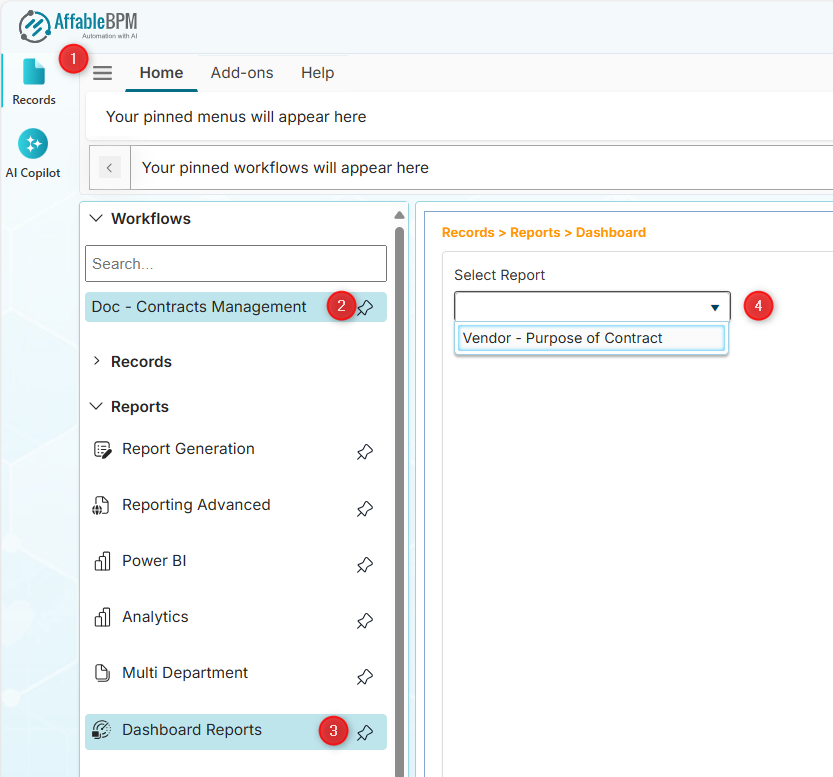
-
The report will be generated and appear on the right side of the page.
 info
infoSome dashboard reports allows you to select rows of records based on filtered dropdown values.