How to Edit a Record
-
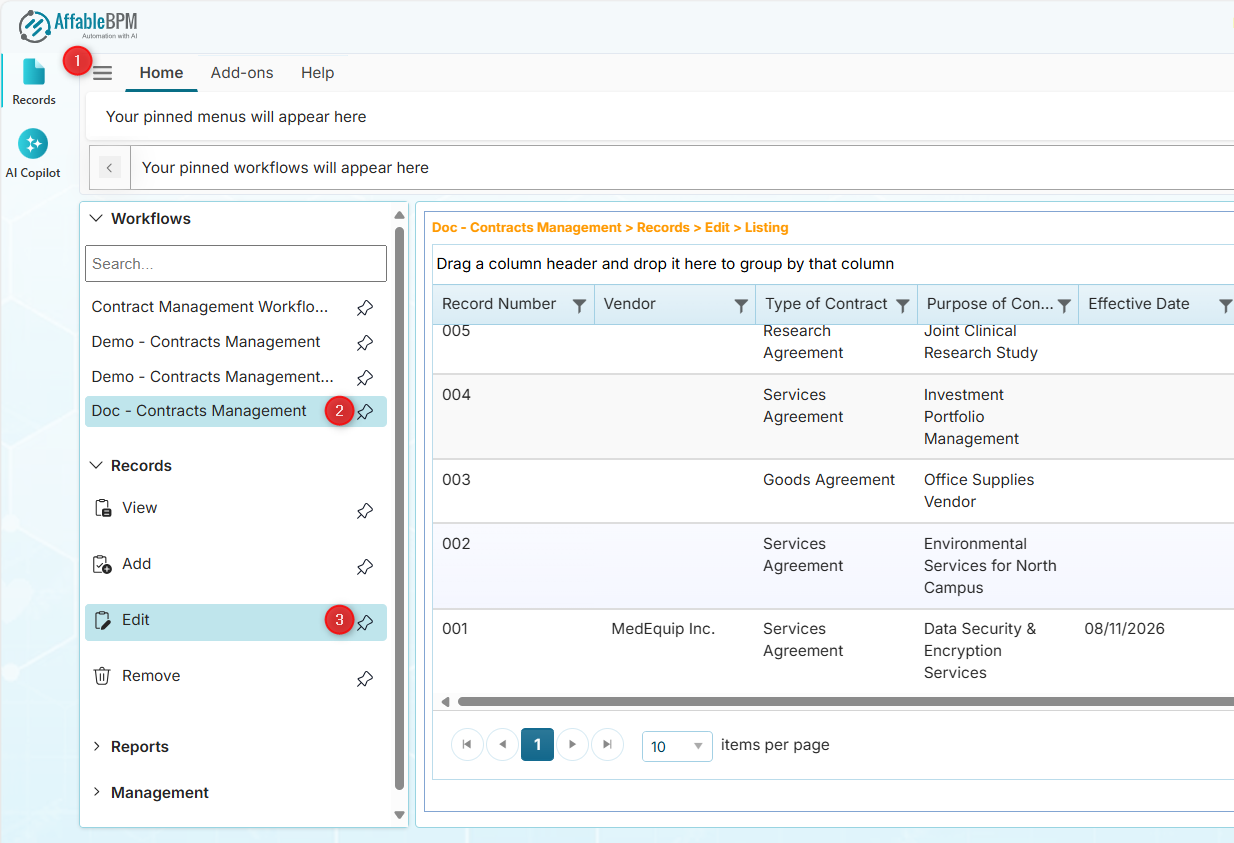
From the sidebar tab, click the Records menu.
-
Click the Workflows section menu to find your assigned workflow.
-
In the Records section menu, click the Edit menu.
-
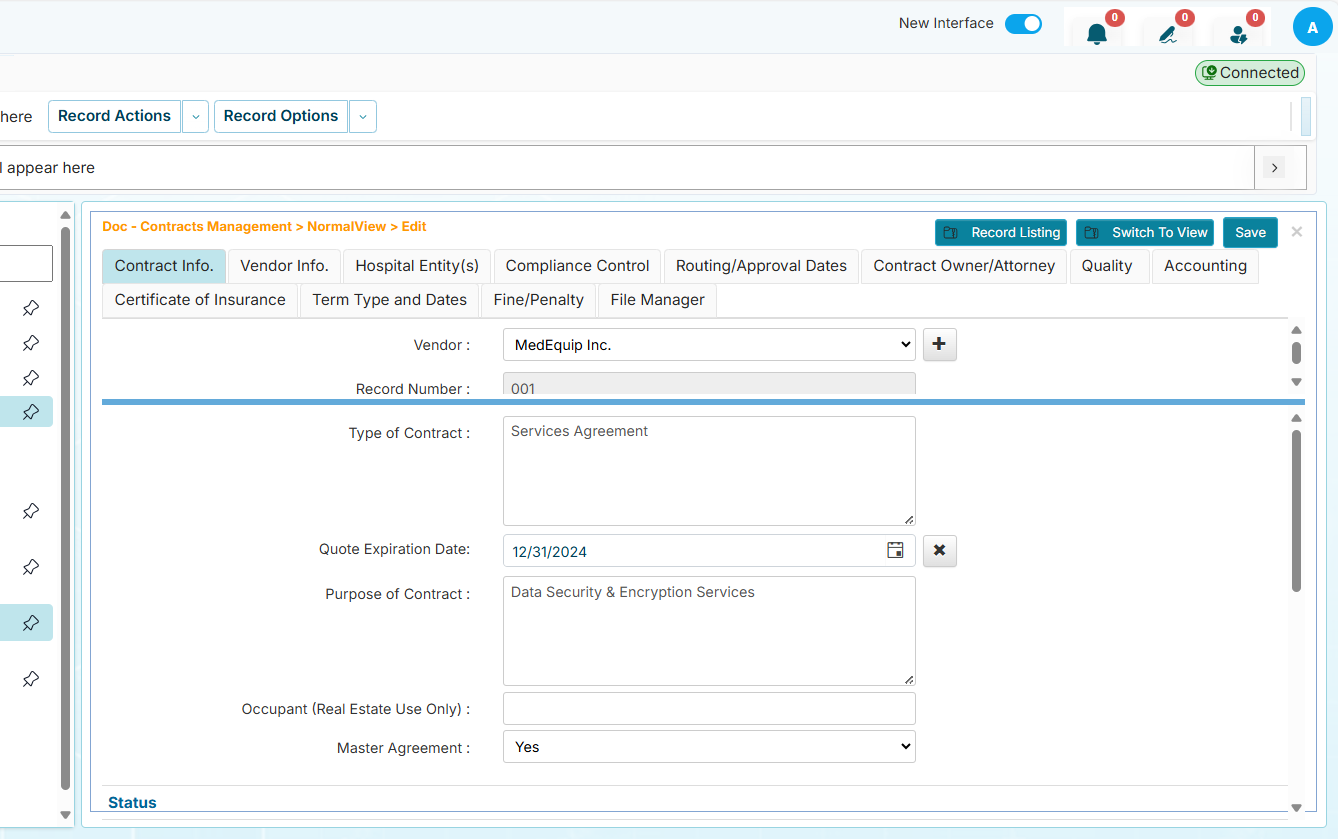
Click the record that you wish to edit from the record listing. If the record has tab fields, click the tab titles to see more information.
 info
info- To undo your changes, click the Undo Changes button in the Record Actions menu.
- The Save button on the page becomes enabled when any fields are modified.
- You can click the hamburger menu to hide the section menus and gain more workspace.
-
Click the Save button when you are done.
Record Actions Dropdown
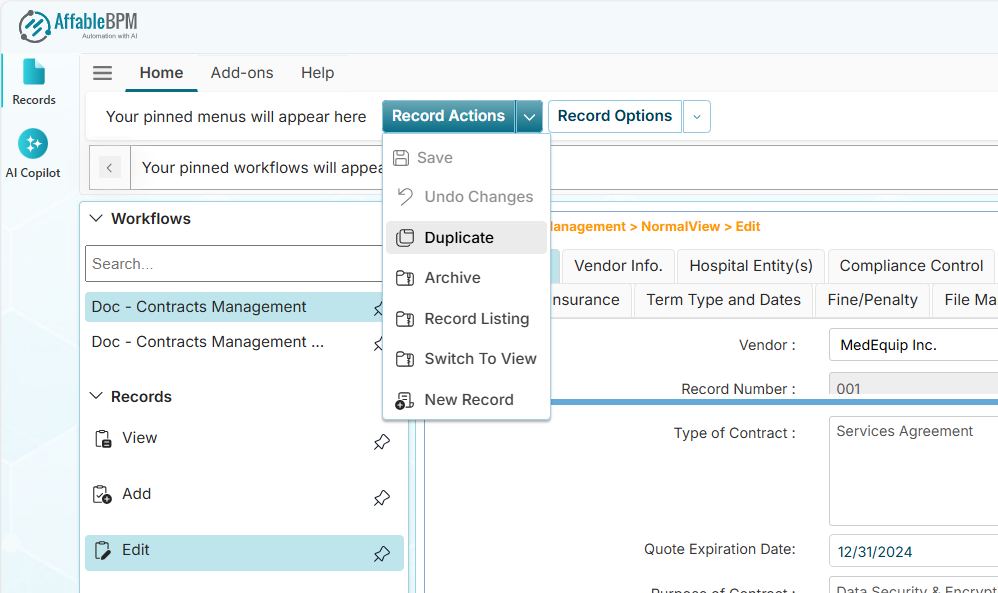
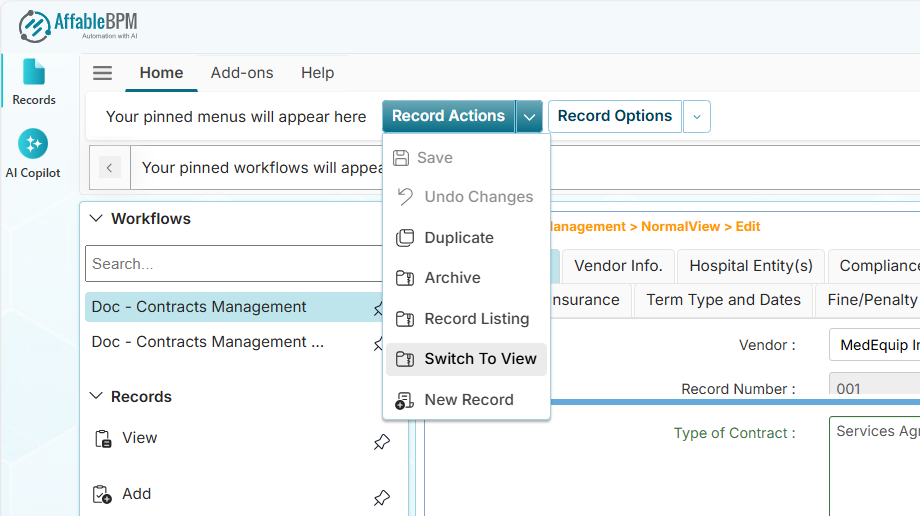
The Record Actions dropdown allows you to to perform additional actions on the record while in Edit mode.
Duplicate Menu
-
Click the Duplicate menu if you wish to create a copy of the record.
-
You will receive a notification that you are on the duplicate copy of the record.
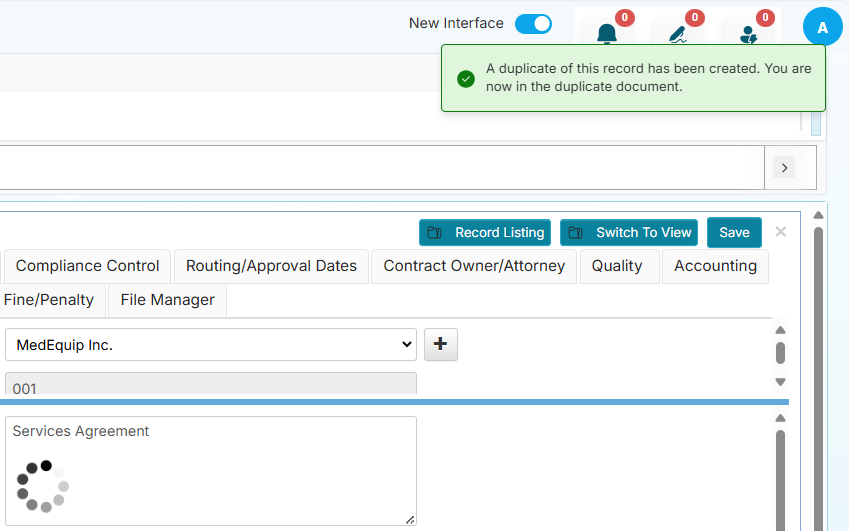
- The duplicate action does not copy the documents of the original record. Only the workflow's folder structure will be copied to the duplicated record.
Archive Menu
-
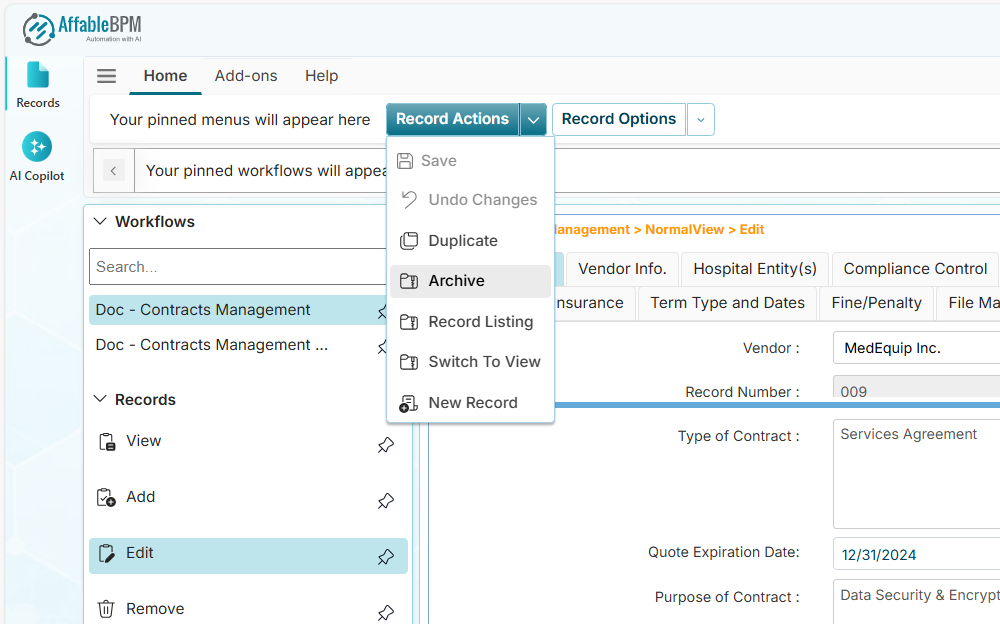
Click the Archive menu if you wish to move the record from the active record listing into the workflow's archive repository.
-
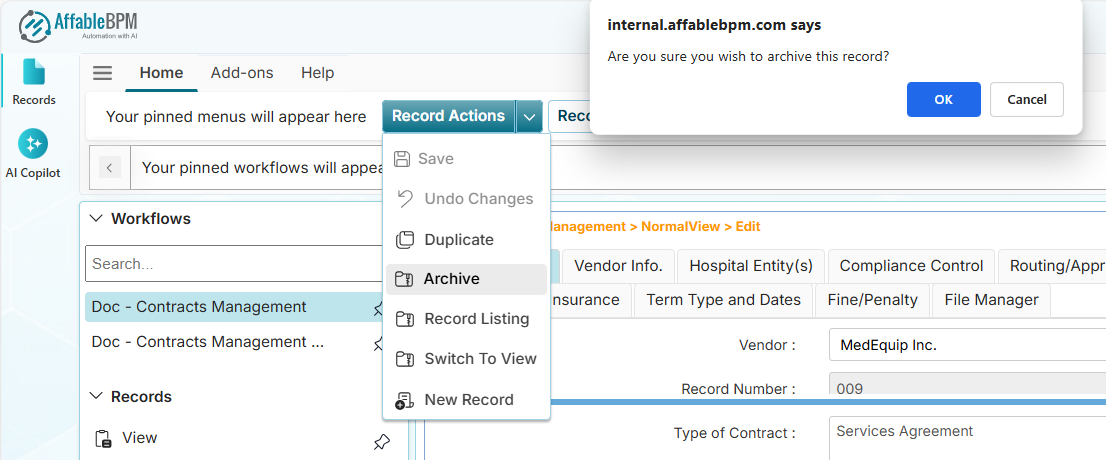
A confirmation notice will appear if you wish to continue.
-
Click OK if you wish to proceed. You will be redirected to the record listing when the archive action is complete.
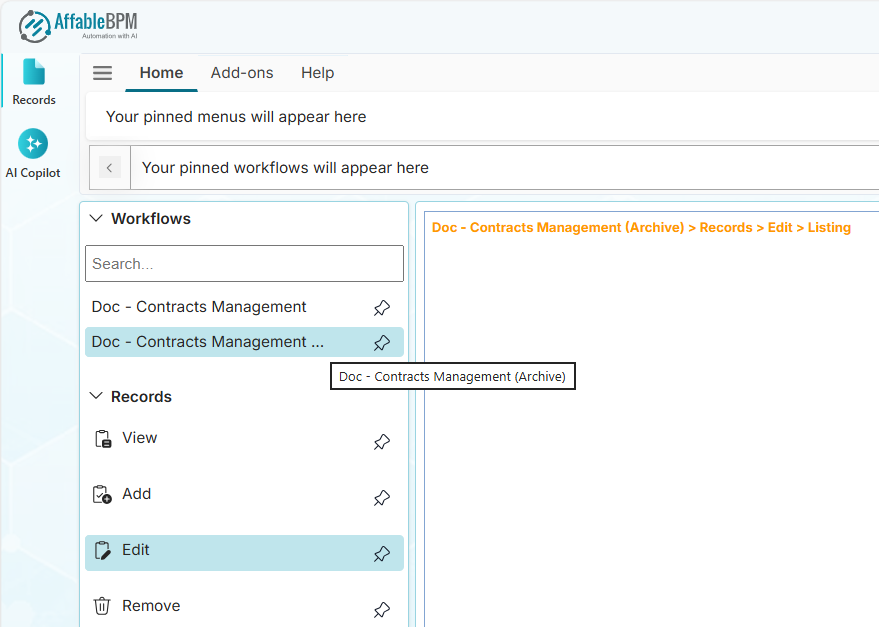
If you wish to unarchive a record, you will need to select the archive repository of the workflow from the Edit menu. Once the edit listing of the archive is showing, click the record and choose the Unarchive menu from the Record Actions dropdown.
New Record Menu
-
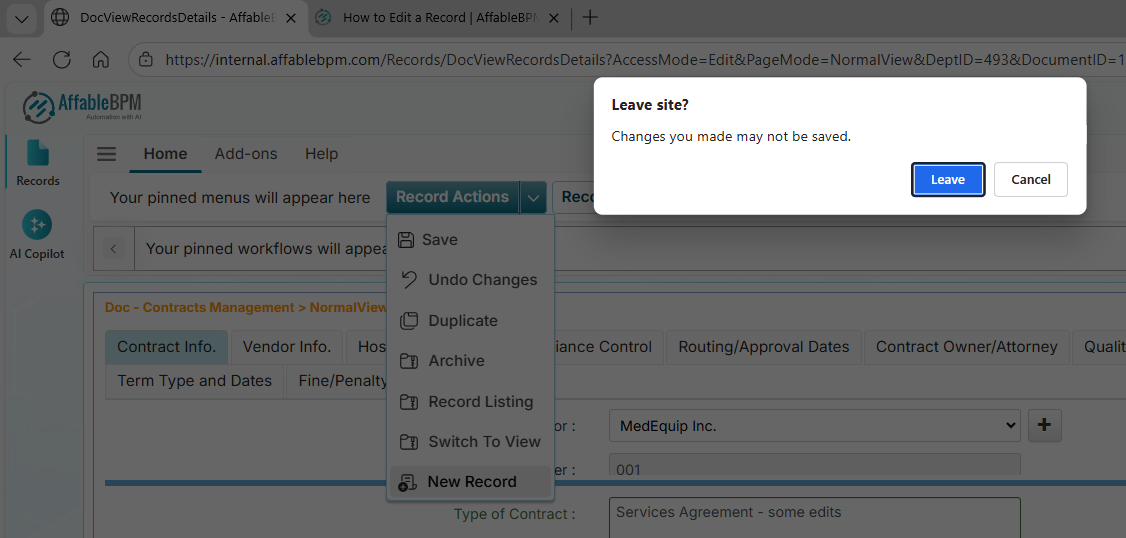
Click the New Record menu if you wish to add a new record while in edit mode.
warningA confirmation message will appear if you have any pending changes. These changes will be discarded if you wish to proceed. Save your changes first before creating a new record.
-
Once done entering the new values, click the Save button to create the record.
Record Listing Menu
-
Click the Record Listing menu if wish to go back to the record listing. You can do the same by clicking the Record Listing button on the page.
 warning
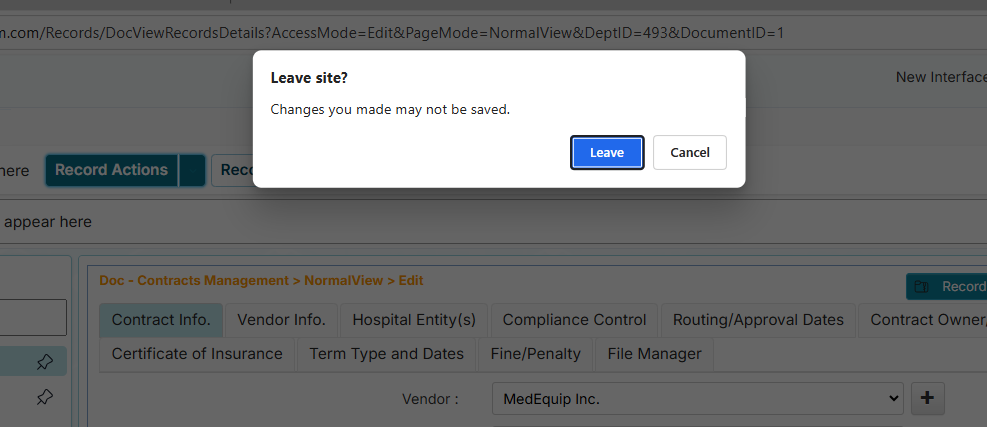
You will get a confirmation message if you have pending changes. Click the Leave button to proceed or click the Cancel button to continue editing.

Switch to View Menu
-
Click the Switch to View menu if you wish to go back into view mode.
 warning
You will get a confirmation message if you have pending changes. Click the Leave button to proceed or click the Cancel button to continue editing.
Record Options Dropdown
In Edit mode, the Record Options dropdown works the same like in View mode. If you are granted access, some of the restricted Record Options menus will be available. See Record Options menus in View mode.