Searching for Records or Documents
How to Do a Basic Search
-
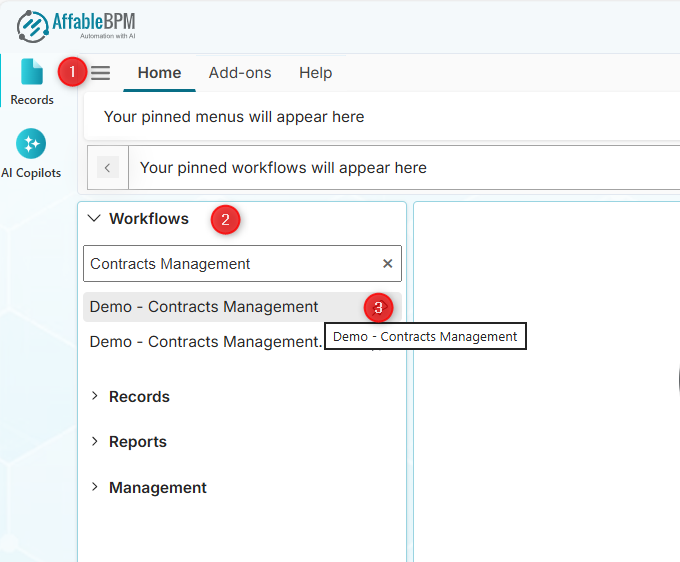
Click the Workflows section menu to list your assigned workflows. You can enter the workflow name in the search box to find a workflow.
-
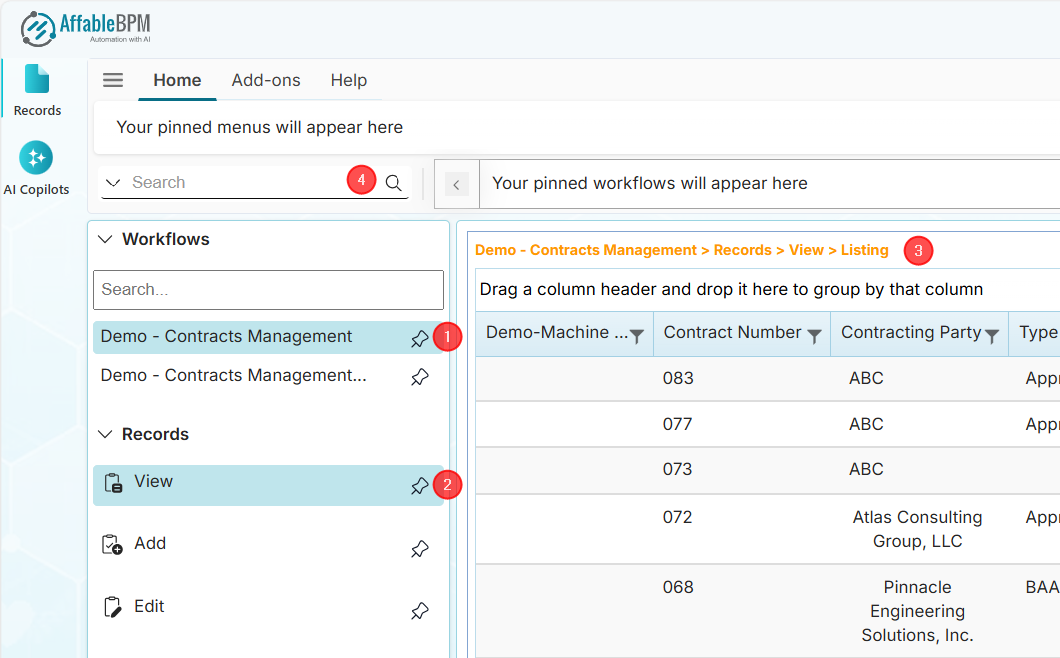
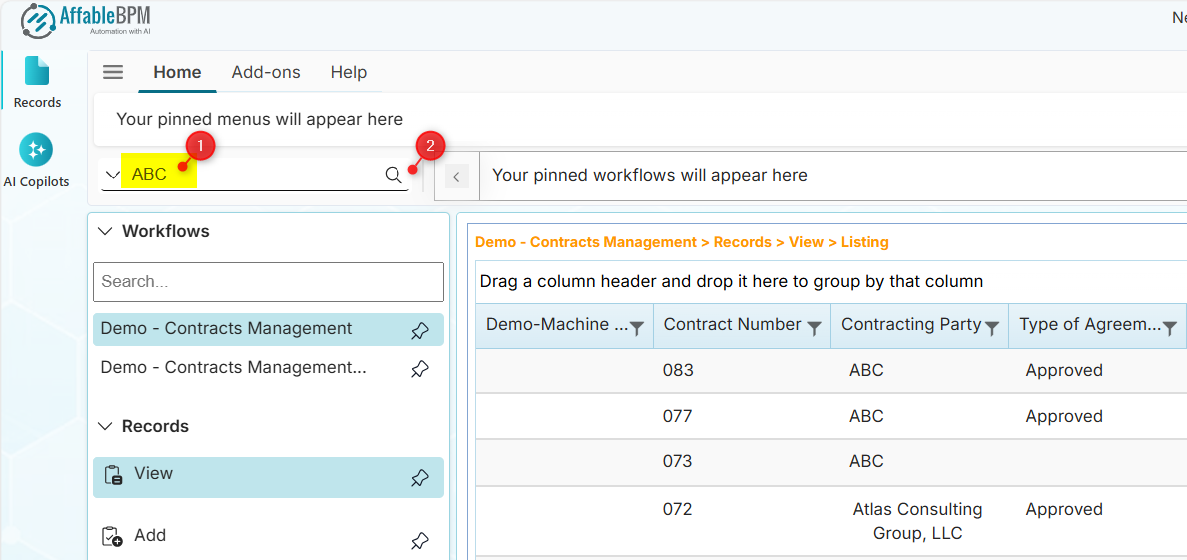
Click the workflow name to display the View Listing page or click the Records section menu then the View menu. The workflow search box will appear, allowing you to enter the search terms.
-
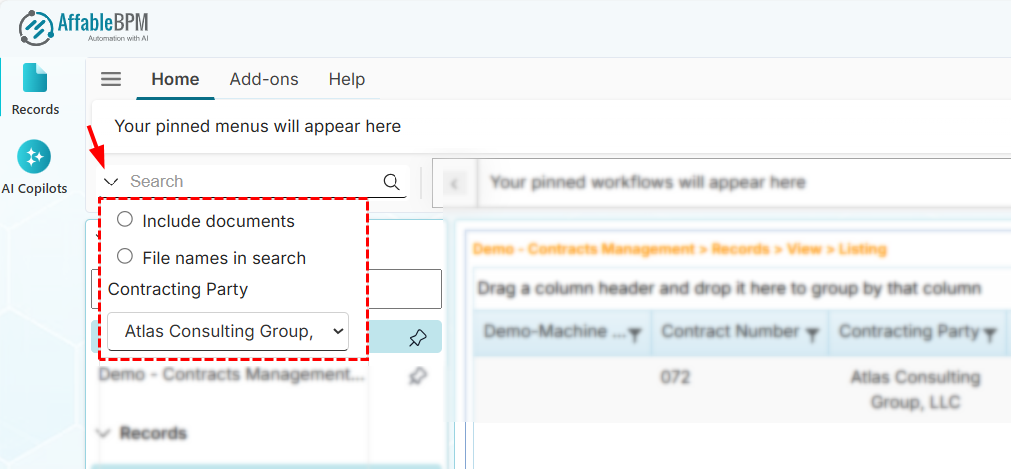
You can expand the search box to find records or documents, or use the dropdown filters to search for records.
-
In the search box, enter your search term then click the search button to perform the search.
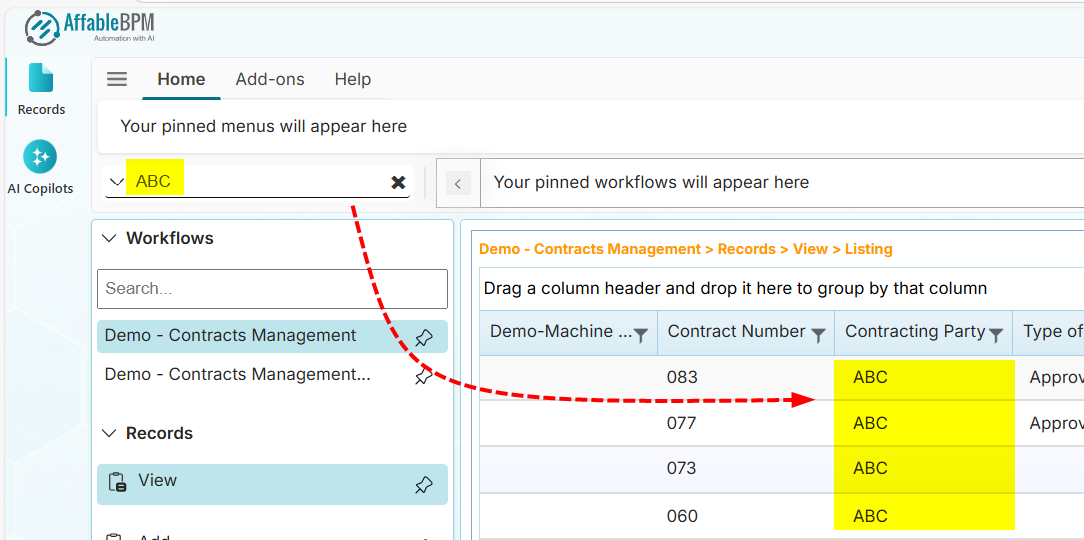
Below is an example search result.
 info
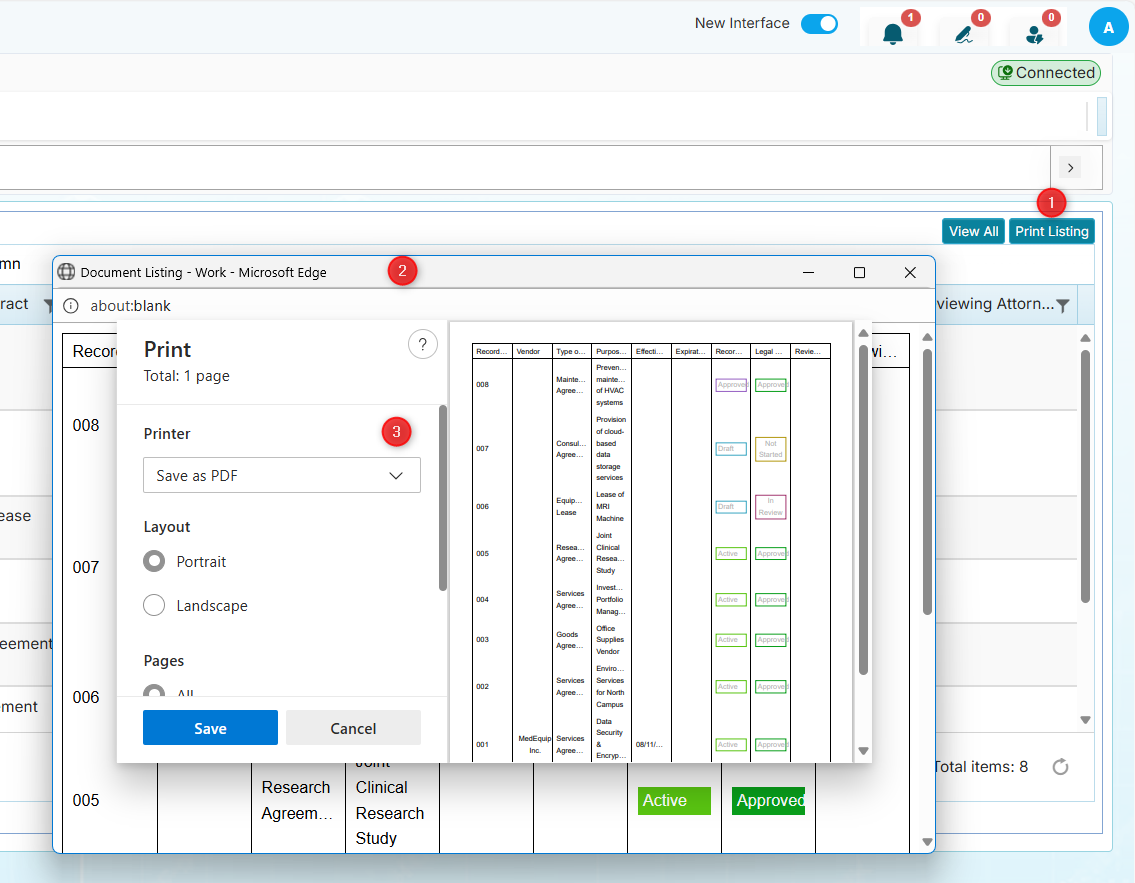
infoThe record listing page also includes the View All and Print Listing buttons.
-
View All: Switches from paginated listing to displaying all records.
-
Print Listing: Creates a printable copy of the record listing. Clicking this button opens the print dialog window, where you can choose output options such as Printer, PDF, OneNote, etc.
-
How to Search for Documents
-
Enter your search term in the search box.
-
Expand the search box, then click the Include documents option.
-
Click the search button. If any records are found, they will be displayed in the grid.
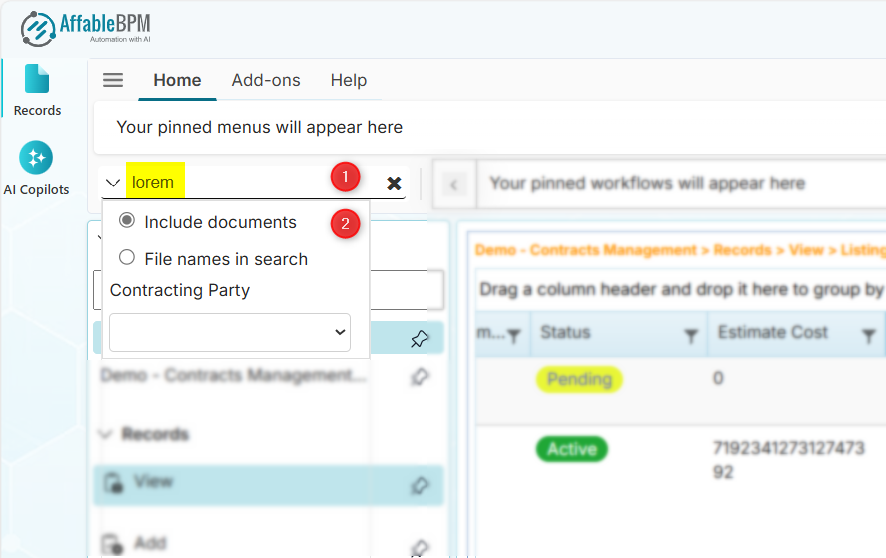
Below are the sample matching files from the search result.
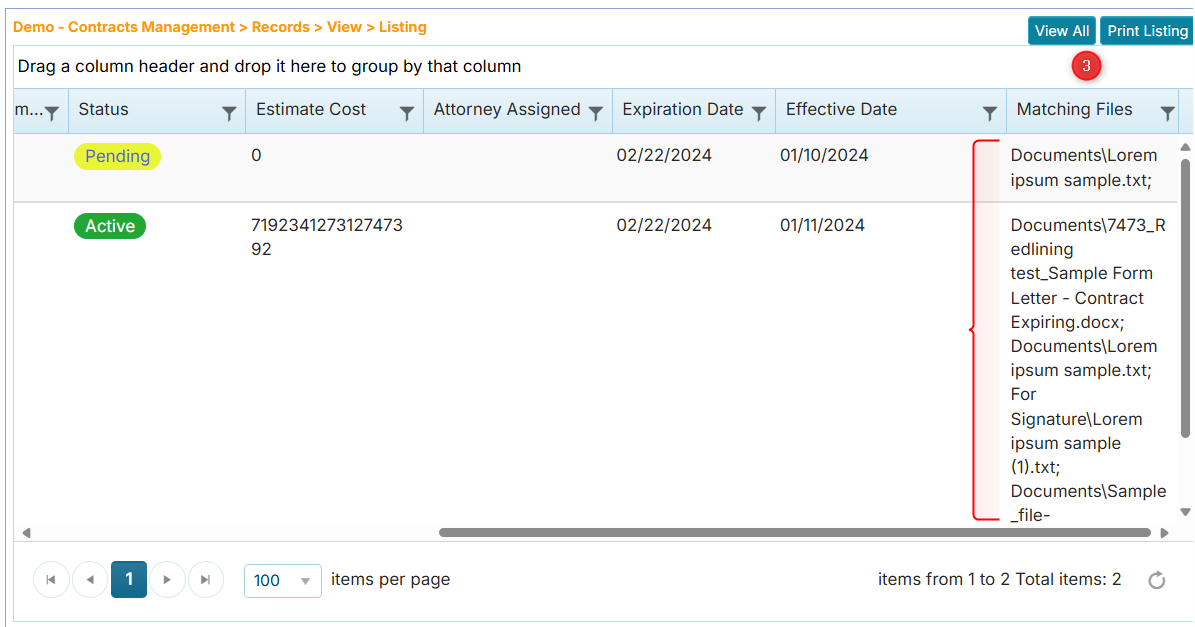
You can click the row to show more details of the record.
-
To search for filenames, click the File names in search option and then click the search button.
How to Use the Dropdown Filters
The dropdown filter acts as a category filter for finding records. It only works for dropdown fields.
-
Expand the search box, then click the dropdown to select a value to filter.
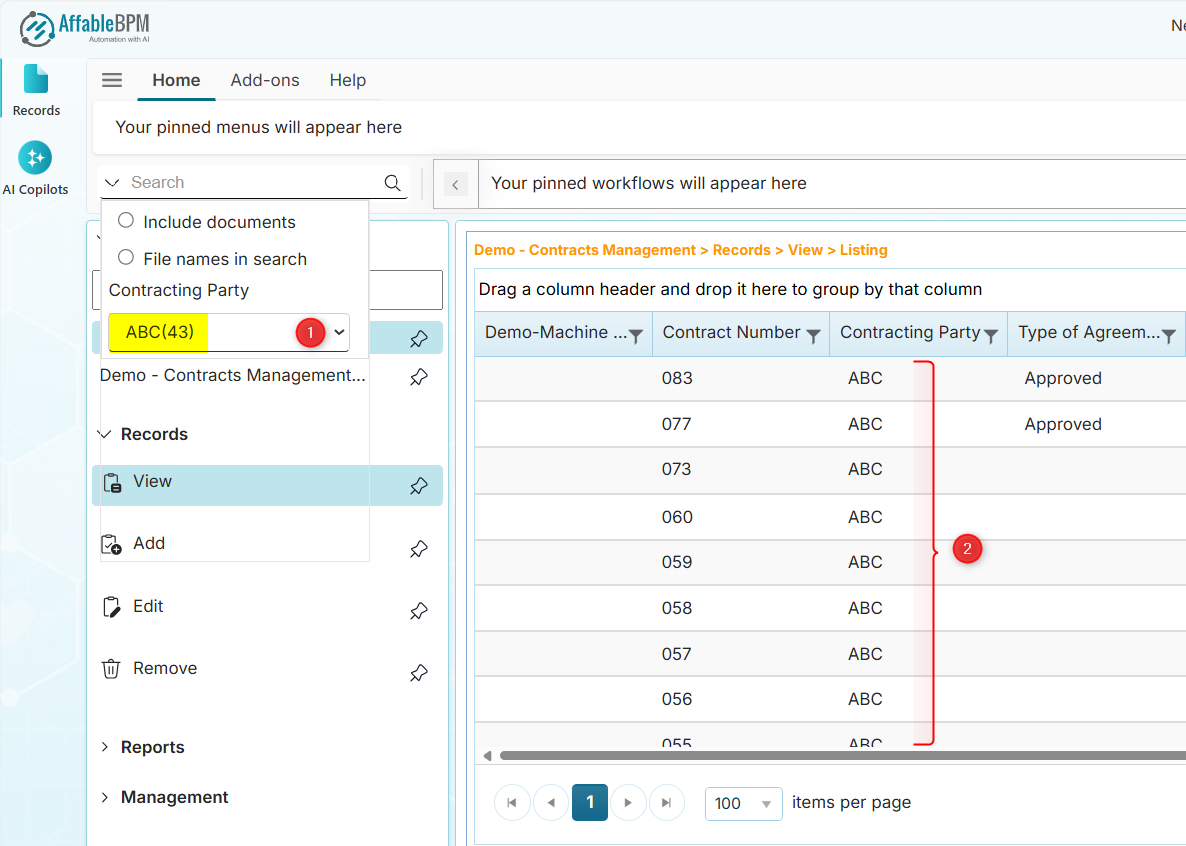
The grid will be re-populated based on the selected value.
-
To remove the filter, click the search's cancel 'X' button.
How to Group Rows By Column Headers
-
Drag a column header into the area that says "Drag a column header..." above the grid.
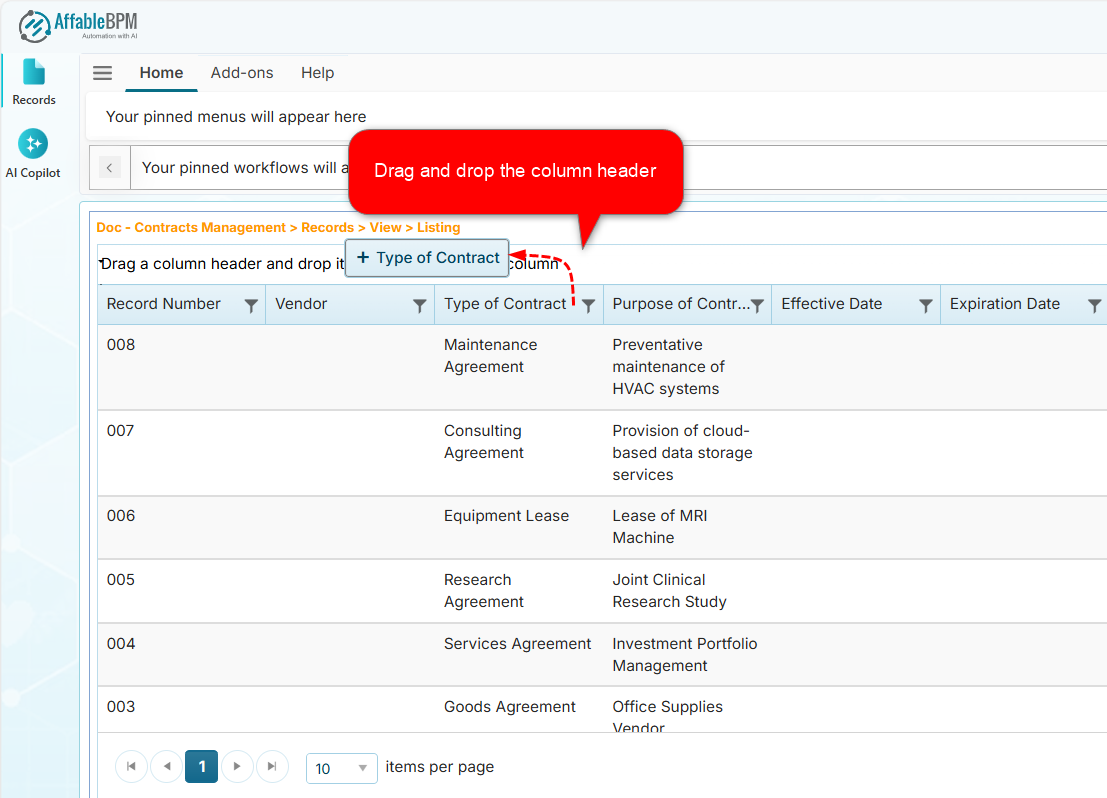
The rows will be grouped based on the values of the column.
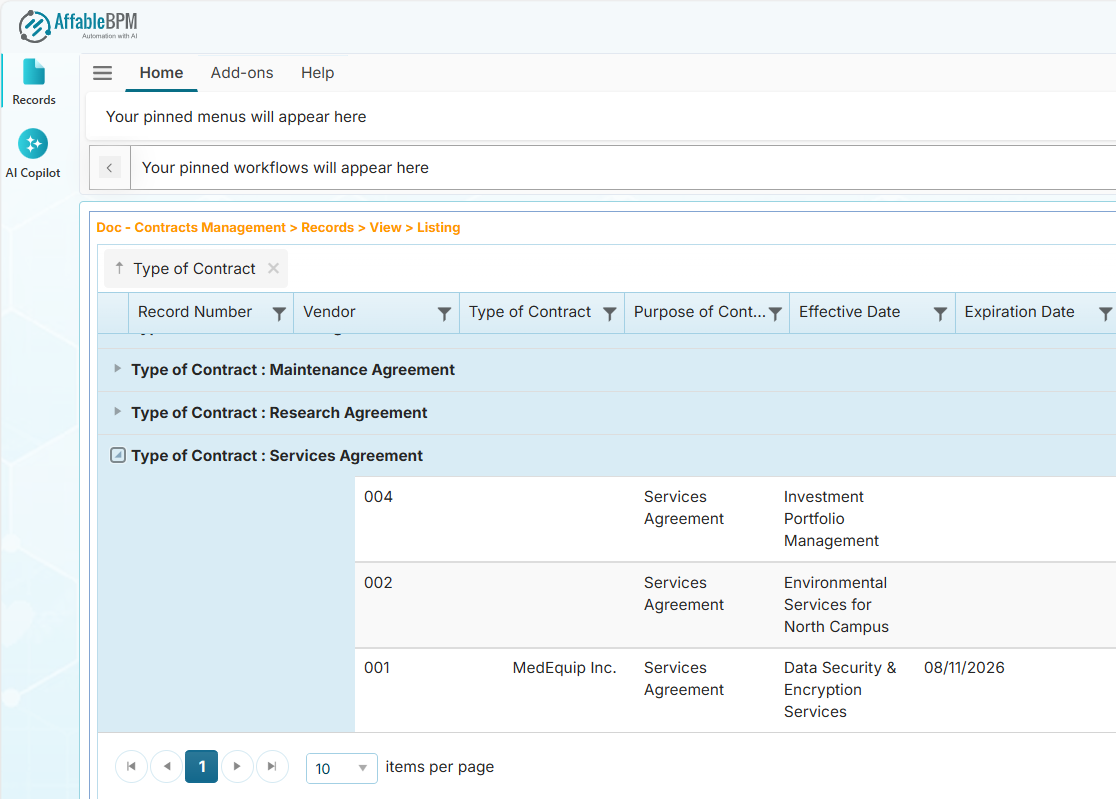
-
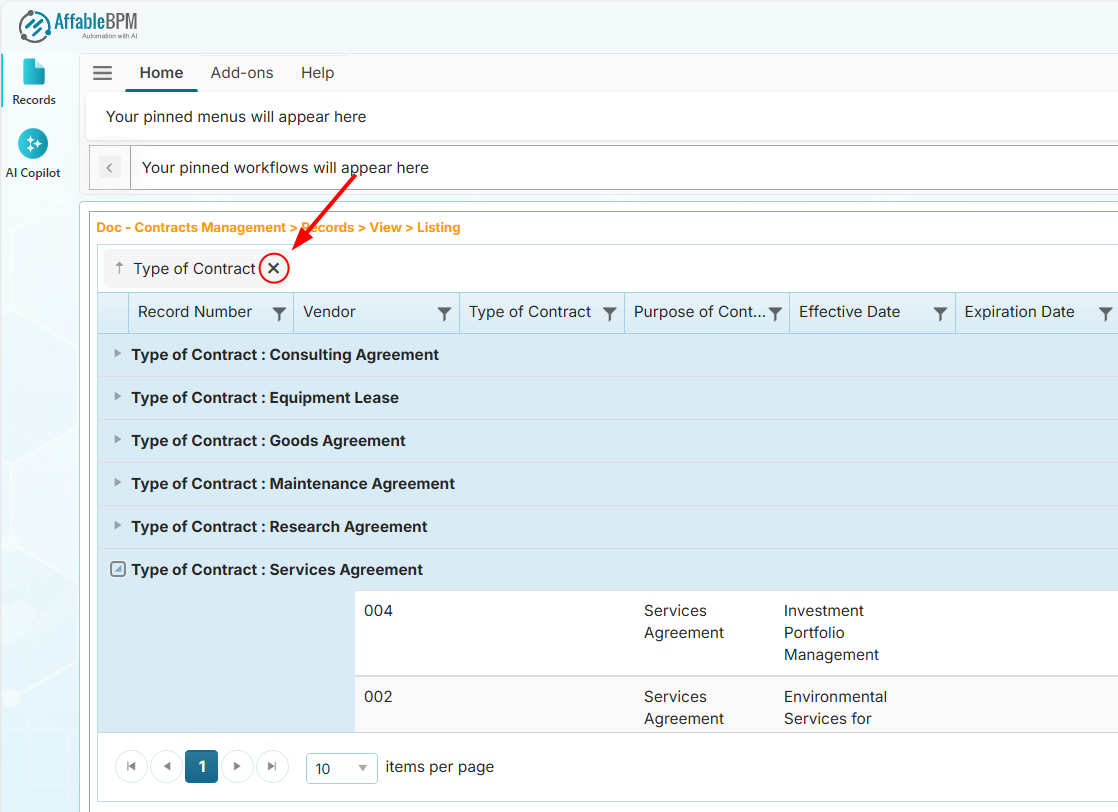
To remove the grouping, click the 'X' button of the column.
How to Use the Grid Column Filters
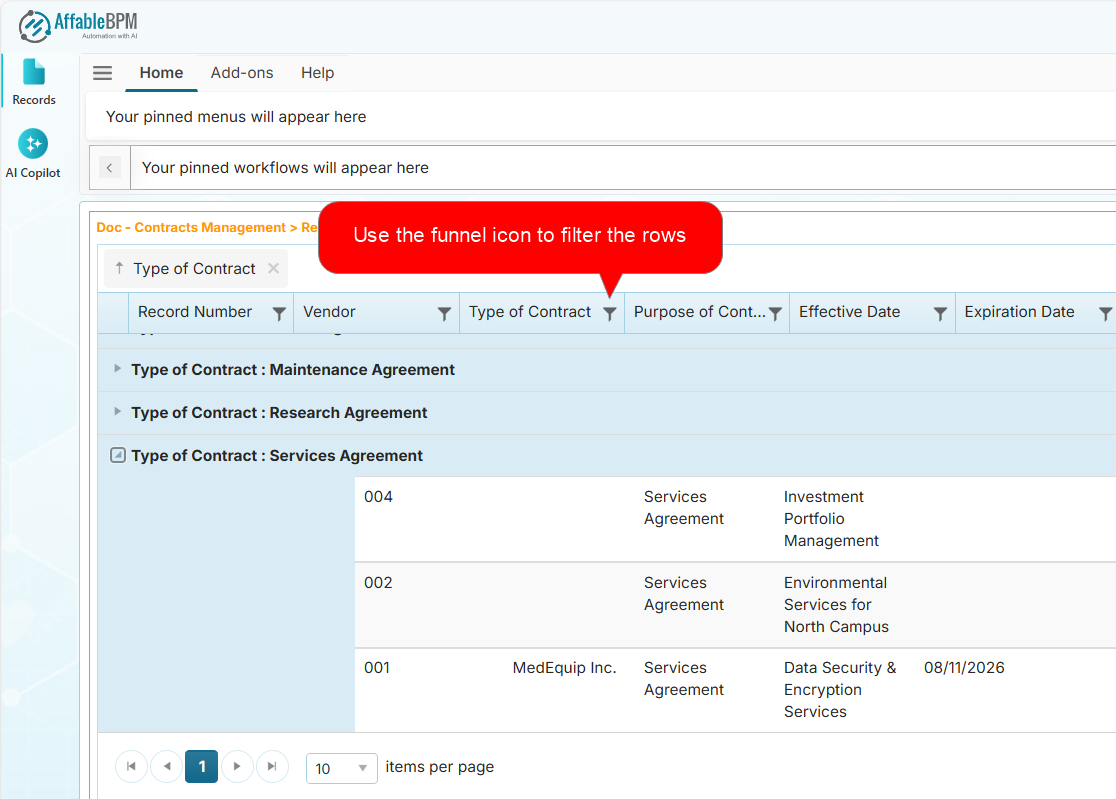
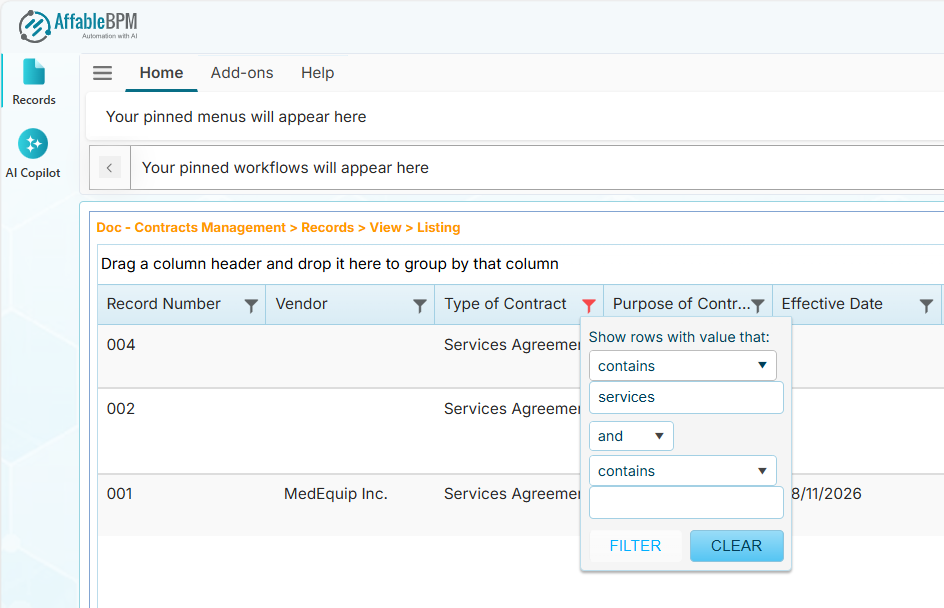
The row values can be filtered by clicking the column header’s funnel icon.
-
Click the funnel icon to show the filters of the selected column.
-
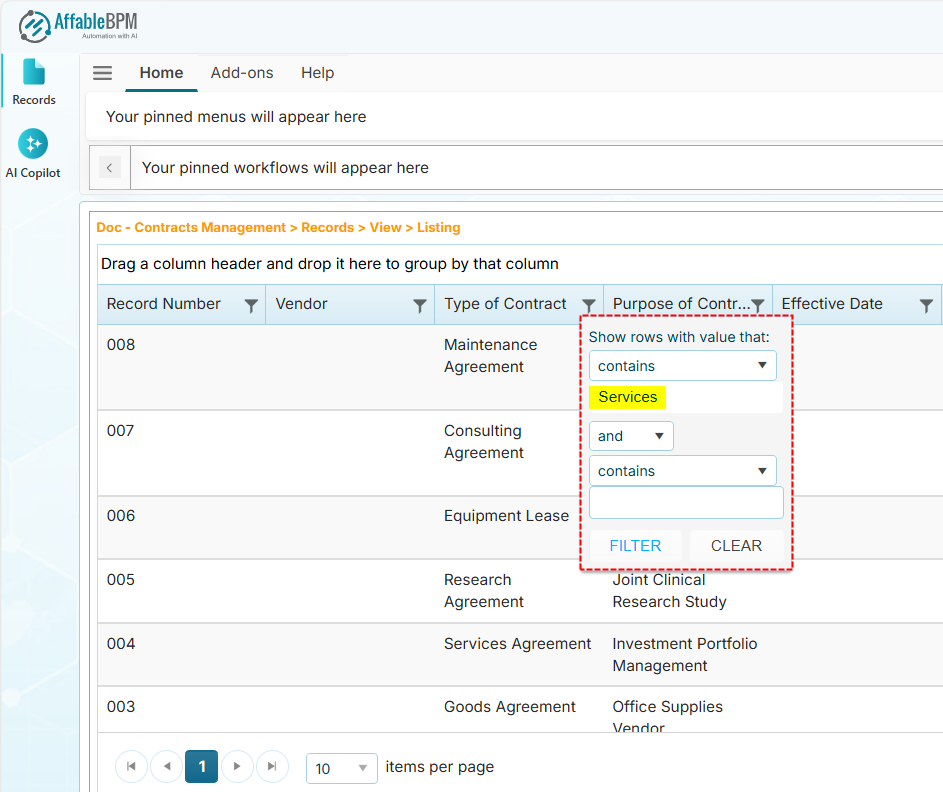
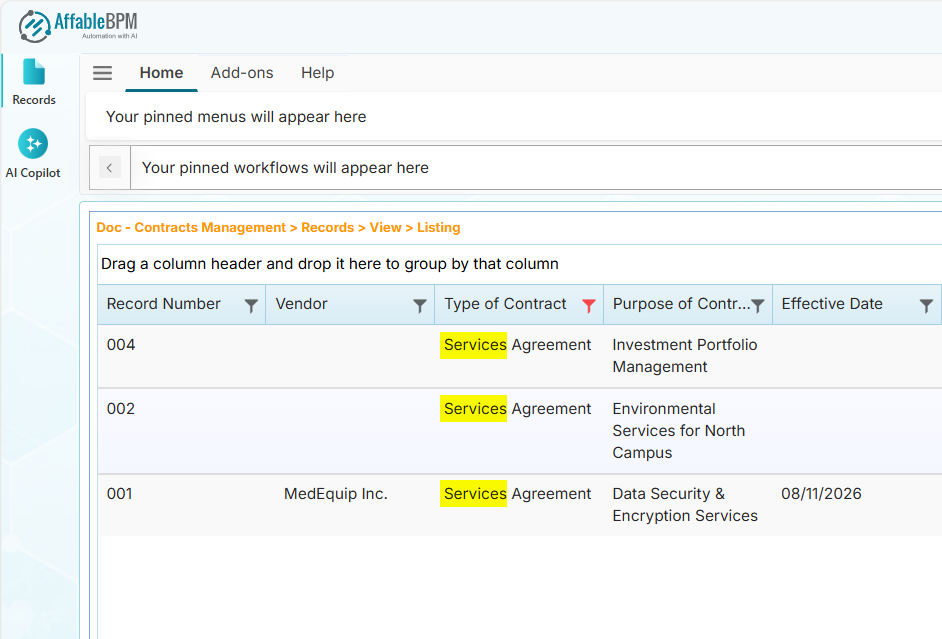
Enter the search term and click the Filter button. If any records are found, they will be listed; otherwise, no results will be displayed.
-
To remove the filter, click the Clear button.
 info
infoYou can clear all column filters by clicking the Clear Filters button of the page.
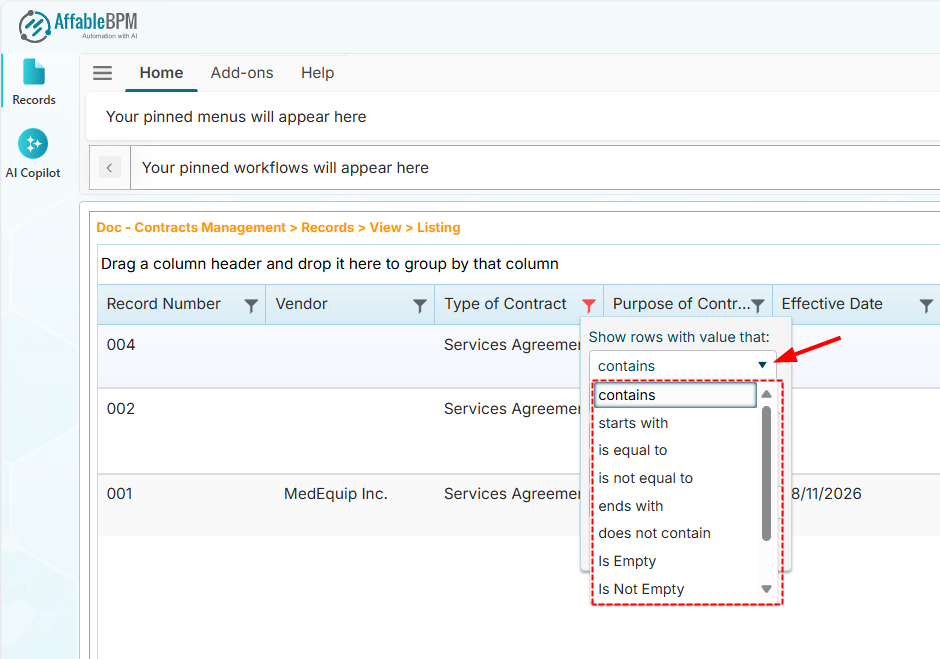
You can use other filters by clicking the Show rows with value that dropdown to refine your search.